Arkadium
All GamesNewBestExclusiveSubscribers
ThumbnailAll Free GamesThumbnailMahjong GamesThumbnailCrosswordsThumbnailBestThumbnailNewThumbnailExclusiveThumbnailPuzzlesThumbnailSolitaire GamesThumbnailWordThumbnailCasual GamesThumbnailDailyThumbnailCardThumbnailTwo Player GamesThumbnailArcadeThumbnailSudoku GamesThumbnailCasinoThumbnailJigsawsThumbnailSpellingThumbnailPokerThumbnailEasy GamesThumbnailStrategyThumbnailHidden ObjectThumbnailMatch 3ThumbnailGame ShowsThumbnailBrainThumbnailTriviaThumbnailPoolThumbnailMultiplayerThumbnailBlockThumbnailSubscriber-OnlyThumbnailSeasonalThumbnailRacingThumbnailAddictingThumbnailFlashThumbnailBrowserThumbnailBubbleThumbnailStan's PuzzlesThumbnailBoardThumbnailMemoryThumbnailMathThumbnailRetroThumbnail3D
ThumbnailSupport
Spinner
Company logo

© 2026 Arkadium

  • Instagram Logo
  • Facebook Logo
  • Tik Tok Logo
  • Player Support
  • Game Help Center
  • Blog
  • Corporate
  • Careers
  • Arkadium for Developers
  • Privacy Policy
  • Arkadium Player Agreement
  • Arkadium Plus Membership Agreement
  • Sweepstakes Rules
  • Sitemap
  • Home
  • |
  • Blog
  • |
  • Save Your Favorite Games to Your Desktop or Home Screen
Save Your Favorite Games to Your Desktop or Home Screen

February 24th, 2026

Save Your Favorite Games to Your Desktop or Home Screen

Good news — saving your favorite game to your desktop or home screen is now easier than ever.

A Quicker Way to Play

On any game page, look for the Save Game button in the game toolbar. Tap or click it, and your game will be saved directly to your home screen, dock, or apps folder (depending on your device and browser). Each saved game gets its own icon and opens in its own window.
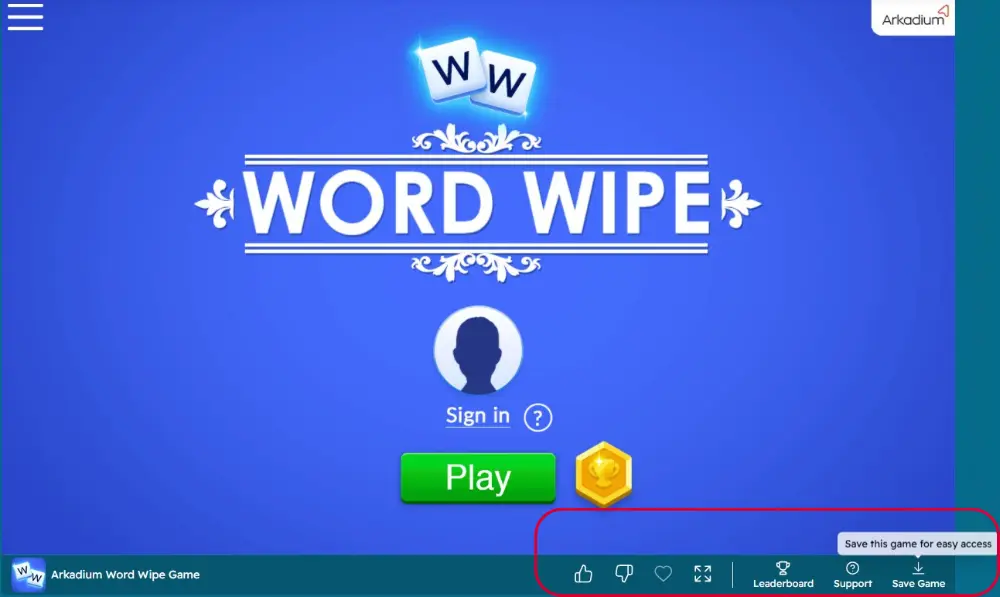
Save Your Favorite Games to Your Desktop or Home Screen

If your browser supports it, you may see a prompt to install the game right away. If not, you will see simple on-screen instructions to guide you through it. Either way, the next time you want to play, your game is just one tap away.

Need more help? Contact Support.

Save Any Arkadium Page to Your Device

The Save Game button is the quickest way to get back to a specific game. If you would like to save Arkadium’s homepage or a category page to your home screen or desktop, the steps below will walk you through it for your device and browser.

Adding Arkadium to your phone’s home screen or desktop means you'll never have to search for your favorite puzzles again.

When you create a shortcut, Arkadium becomes as easy to access on your computer or mobile device. Skip the browser bookmarks and lengthy web addresses - your games are right there waiting for you. Whether you have five minutes between meetings or want to unwind after a long day, instant access means more time playing and less time searching.
Add Arkadium to Your Desktop or Home Screen

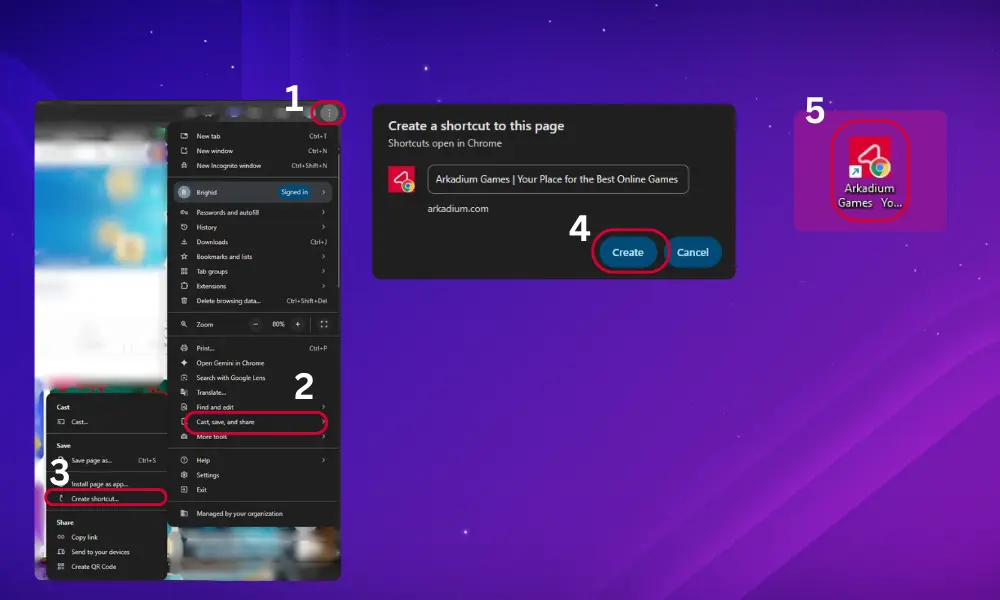
Desktop/Laptop: Windows, Chrome Browser

Steps:

  1. In the browser, open the page you want to save as a shortcut. Click the three dots in the top right.
  2. Select "Cast, save, and share..."
  3. Select "Create shortcut..."
  4. From the dialog that appears, you have an option to rename the shortcut. Keep the default name for the shortcut or rename it and select "Create."
  5. Find your new shortcut on the desktop, or the folder you selected.
Step by Step: Windows Chrome Browser

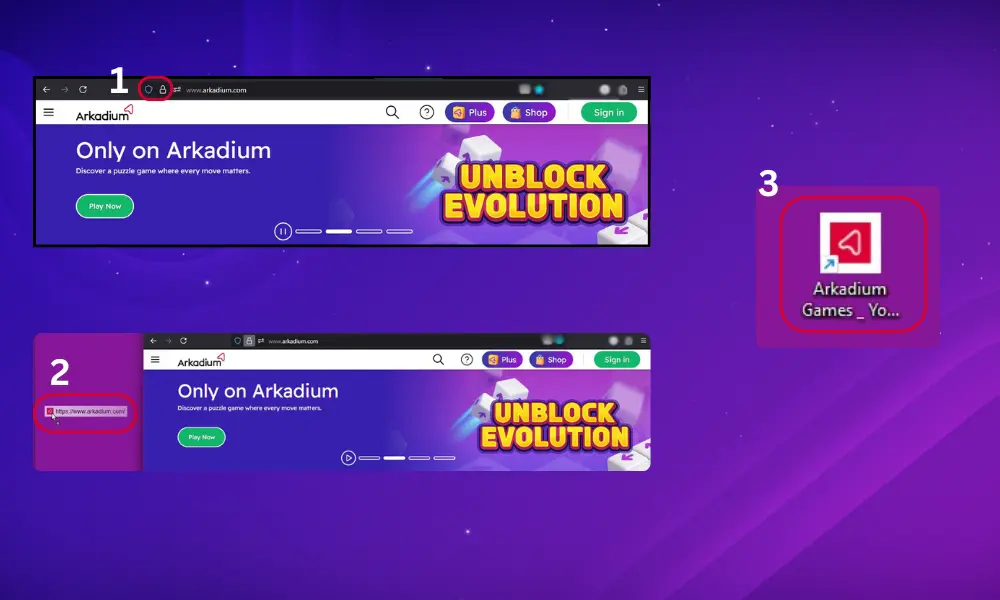
Desktop/Laptop: Windows, Firefox Browser

Steps:

  1. In the browser, open the page you want to save as a shortcut. Resize your browser window so you can see the desktop. Look for the lock icon located to the left of the address bar.
  2. Drag the lock icon located onto your desktop.
  3. Your shortcut has been created.
Step by Step: Windows Firefox Browser

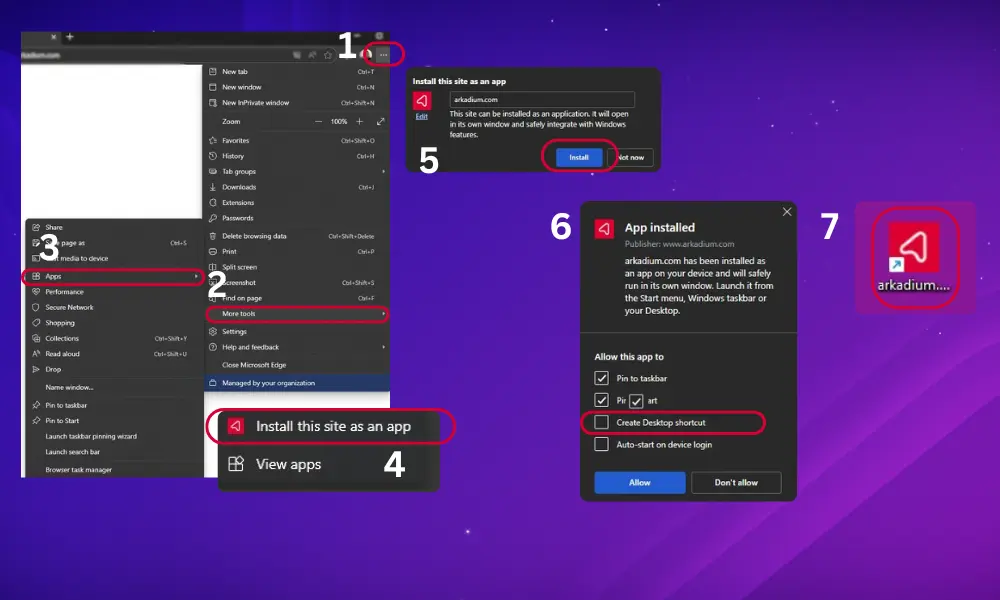
Desktop/Laptop: Windows, Edge Browser

Steps:

  1. In the browser, open the page you want to save as a shortcut, click the three dots on far top right.
  2. Hover on the “More Tools” option.
  3. Select "Apps."
  4. Select "Install this site as a web app."
  5. A pop up will appear that reads "install this site as a web app", click "Install"
  6. A pop up that reads “App Installed” will appear, select “Create Desktop Shortcut” from the checklist and click Allow.
  7. The shortcut should now appear on your desktop
Step by Step: Windows Edge Browser

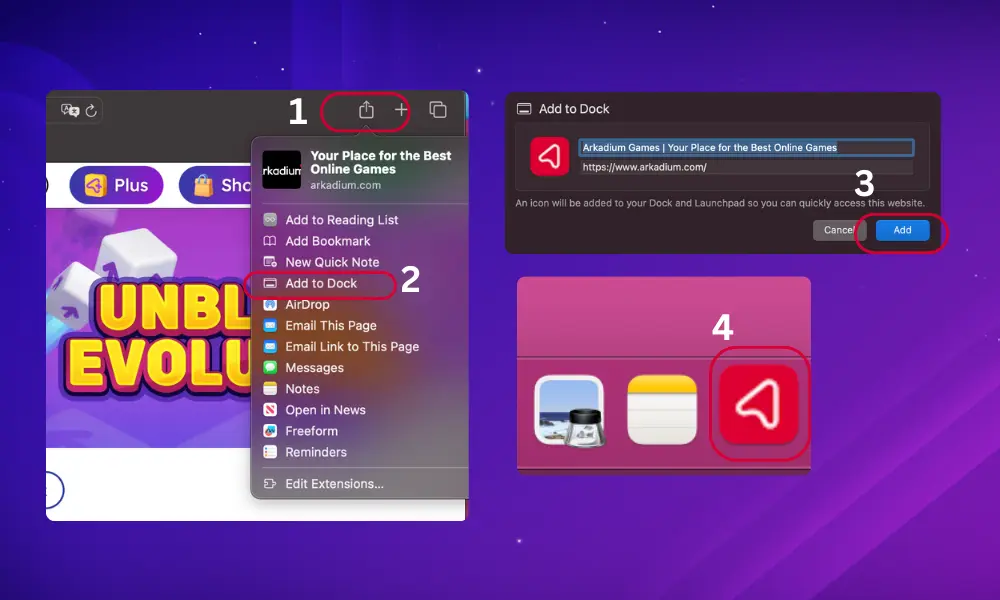
Desktop/Laptop: Mac, Safari Browser

Steps:

  1. In the browser, open the page you want to save as a shortcut , click the file icon" in the menu bar
  2. Select "Add to Dock"
  3. A pop up will appear that says "Add to Dock," click Add
  4. Your Arkadium shortcut will appear in the Dock
Step by Step: Mac Safari Browser

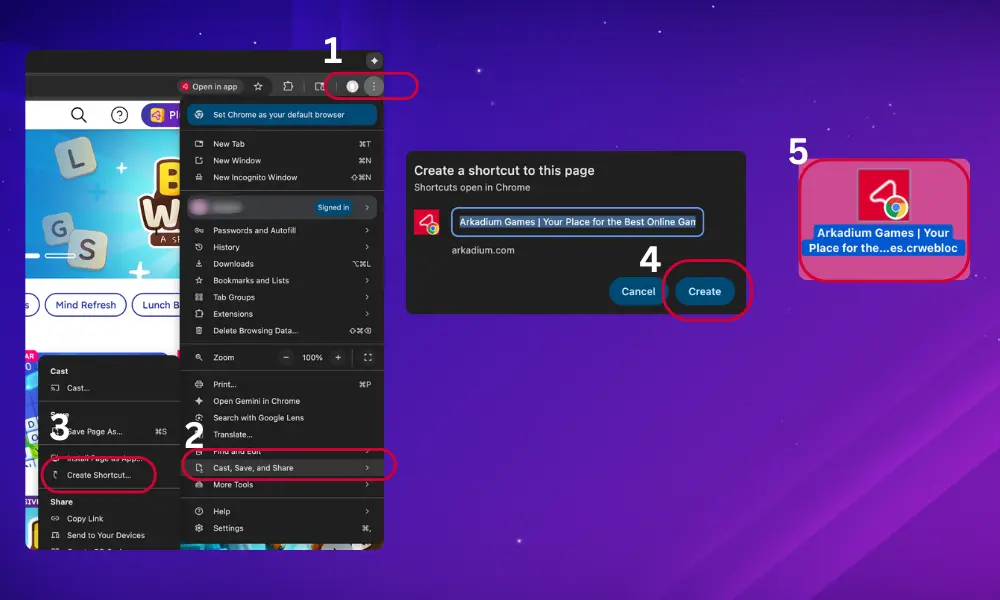
Desktop/Laptop: Mac, Chrome Browser

Steps:

  1. In the browser, open the page you want to save as a shortcut, click the three dots menu in the top-right corner.
  2. Select "Cast, Save, and Share."
  3. Select "Create Shortcut..."
  4. A pop up will appear "Create a shortcut to this page," click Create.
  5. Your shortcut will appear on the desktop.
Step by Step: Mac Chrome Browser

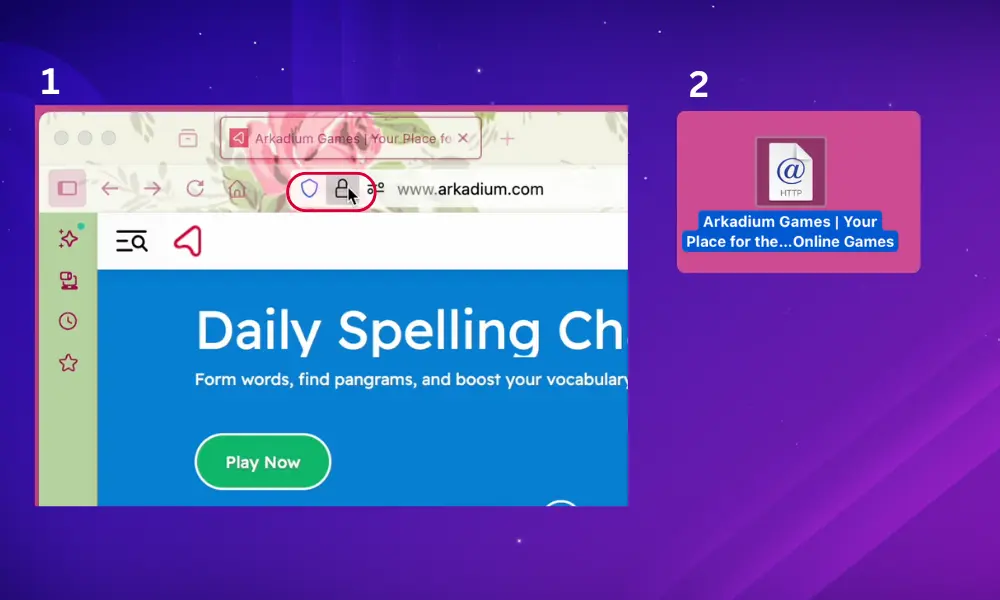
Desktop/Laptop: Mac, Firefox Browser

Steps:

  1. In the browser, open the page you want to save as a shortcut. Resize your browser window so you can see the desktop. Look for the lock icon located to the left of the address bar.
  2. Drag the lock icon located onto your desktop to create the shortcut.
Step by Step: Mac Firefox Browser

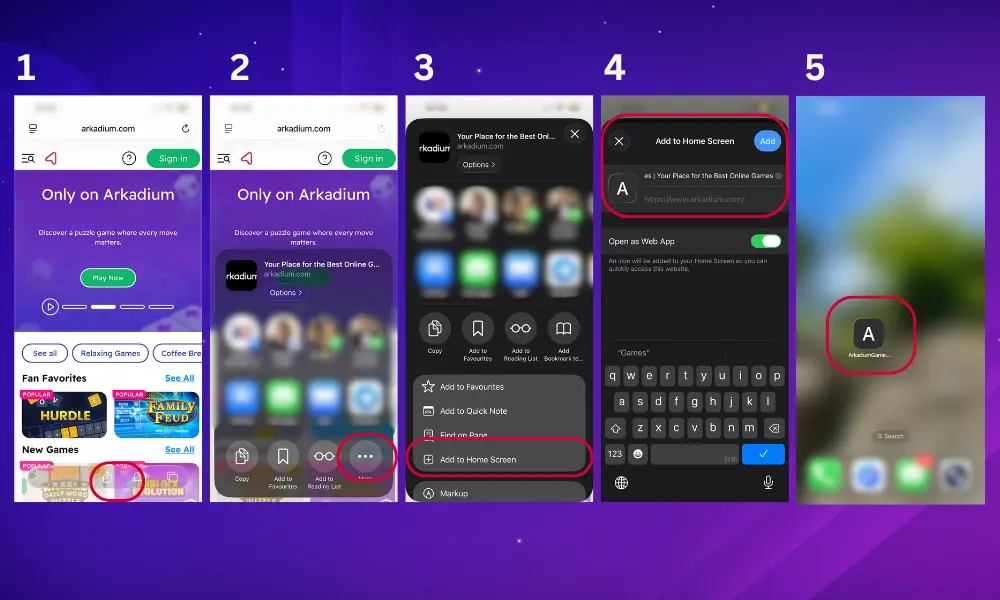
iPhone: Safari Browser

Steps:

  1. In the browser, open the page you want to save as a shortcut, tap the Share icon at the bottom of the screen.
  2. Tap the three dots (More) on the next menu.
  3. Tap "Add to Home Screen."
  4. Rename it if you like, and tap "Add."
  5. Find the shortcut on your home screen
Step by Step: iPhone Safari Browser

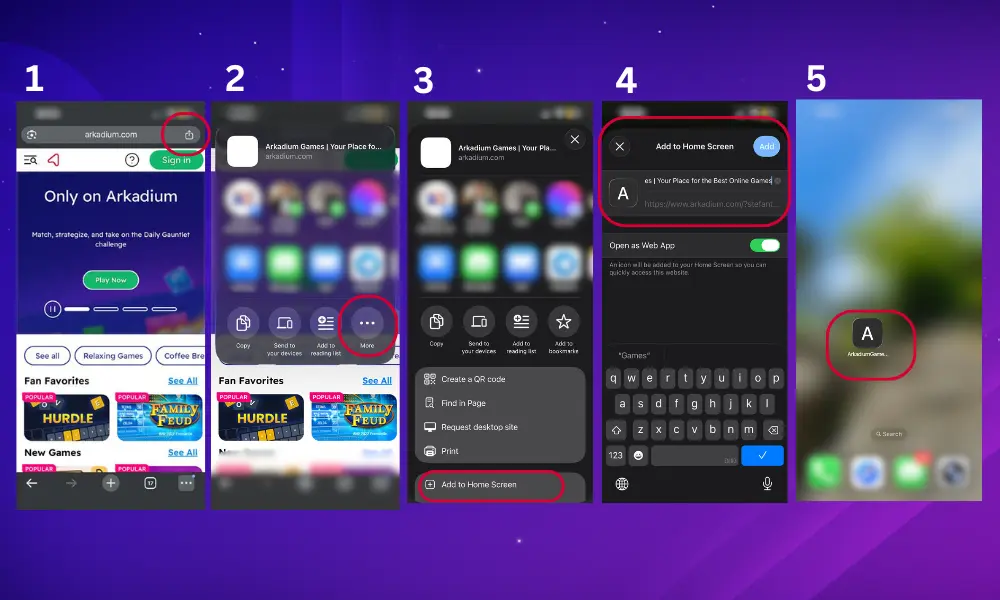
iPhone: Chrome Browser

Steps:

  1. In the browser, open the page you want to save as a shortcut, click the Share icon.
  2. Tap the three dots (More) on the next menu.
  3. Tap "Add to Home Screen."
  4. Rename your shortcut if you like then tap "Add."
  5. Find the shortcut on your home screen.
Step by Step: iPhone Chrome Browser

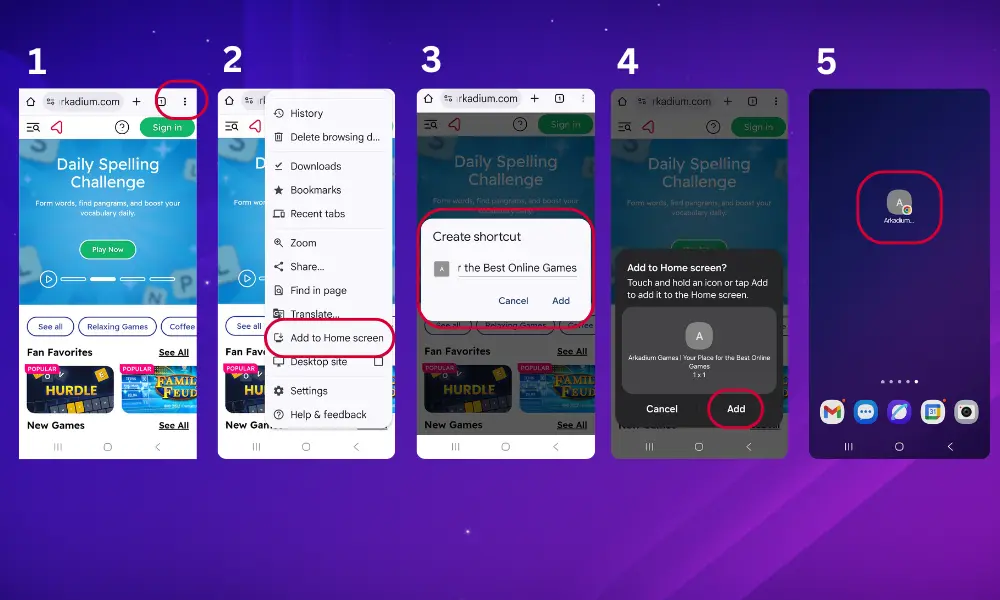
Android: Chrome Browser

Steps:

  1. In the browser, open the page you want to save as a shortcut, tap the three dots menu in the top right corner.
  2. Tap "Add to Home screen."
  3. Rename your shortcut if you like, tap "Add.
  4. Tap "Add" again.
  5. Find the shortcut on your home screen.
Step by Step: Android Chrome Browser

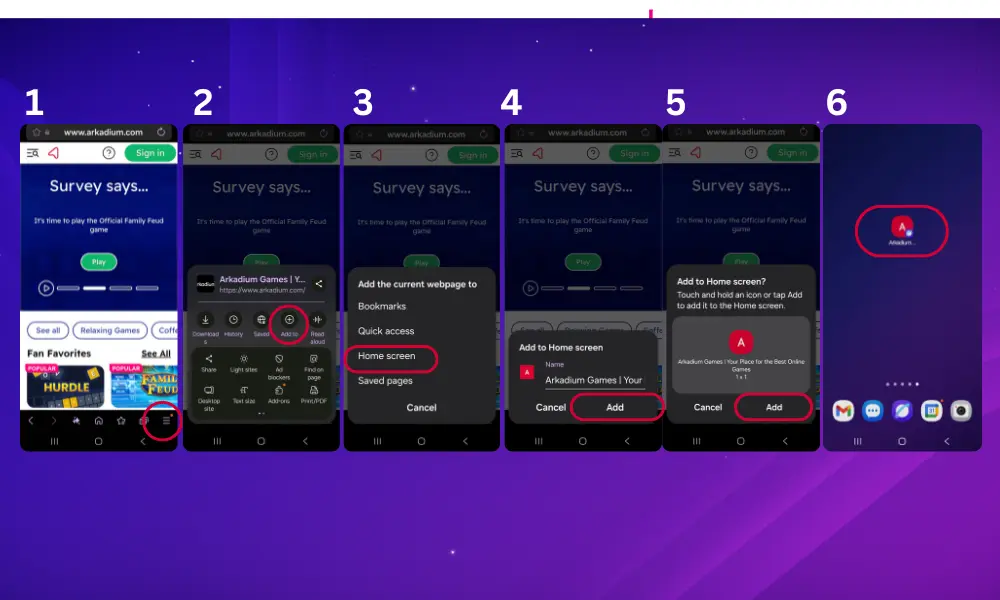
Android: Samsung Internet

Steps:

  1. In the browser, open the page you want to save as a shortcut, Tap the three lines at the bottom right of the screen.
  2. Tap "Add to."
  3. Tap "Home screen."
  4. Rename your shortcut if you like, tap "Add.
  5. Tap "Add" again.
  6. Find the shortcut on your home screen.
Step by Step: Android Samsung Internet Browser

Once you've added Arkadium to your desktop or home screen, your daily dose of brain training is always within reach. No more typing long web addresses or hunting through bookmarks, Just click and play. Your next puzzle is only one tap away.

Need more help? Contact Support.

Category: General

Recommended Posts

  • The Best Tricks and Strategies to Win at Solitaire | Arkadium

Follow us

  • FacebookFacebook
  • InstagramInstagram